What's new — June 2026
Pulse now takes payments. Pick a plan, get a monthly credit bucket, and start generating in minutes — no card needed for the free trial. Plus transparent per-action credit costs, refined AI Regenerate, and video generation across quality tiers. See plans & pricing.
New · Plans & subscriptions
Grow, Scale, and Pro are live. Each plan gives you a monthly credit bucket and a brand allowance. Secure card payments at checkout. Manage or change your plan anytime from Credits & Billing.
New · Top-up packs that never expire
Run low mid-month? Add 200, 500, or 1,000 credits. Monthly plan credits reset each cycle — top-up credits roll over and never expire.
New · Free trial, no card
50 credits, 14 days. Train a brand, generate a few posts, animate a clip — see the output quality before you pay a cent.
Transparent credit costs
Every action shows its exact credit cost on the button before you confirm. No surprises. Failed jobs are automatically refunded — you only pay for output you actually receive.
Refined · AI Regenerate
Restyle any generated image: remove the background for a clean cut-out, or describe an object to remove and regenerate the scene without it. Inline on every image + a dedicated view.
Video generation across tiers
Animate any approved still into a short, brand-locked clip. Choose a quality tier from fast to best — the credit cost for each length and tier is shown before you generate.
Coming soon · Auto Post
Scheduling UI is in place; direct publishing is in final testing. Soon you'll schedule approved posts straight to Instagram, TikTok, and Facebook from the calendar. Status.
Brand allowance by plan
Grow holds 1 brand, Scale holds 3, Pro holds 10. Need more? Talk to us about a custom allowance.
Foundation — multi-tenant workspace
Every signup gets their own private, isolated workspace and a starter brand cloned in automatically, so you're never staring at an empty screen. Your brands, posts, and credits are only ever visible to you.
Your own private workspace
Every account is fully isolated. Your brands, posts, viral research, and credit balance are only ever visible to you. Nobody else on the platform can see your data.
Start with a brand already built
New accounts open with a fully-configured sample brand. Explore every feature with real content from minute one — then build your own brand alongside it.
Live credit balance
Your credit count updates in real time in the top bar — every spend or top-up shows instantly, across every tab and background job. Always know exactly where you stand.
One brain, every output
Train your brand once. Your palette, voice, rituals, and rules feed every visual, caption, ad, and video automatically — so output stays unmistakably on-brand.
Pulse is the brand brain that turns your strategy into ready-to-ship content — at agency speed.
Train it once. Every visual, every caption, every ad, every video reads from the same canonical source of truth. The better you train it, the more unmistakable your output becomes.
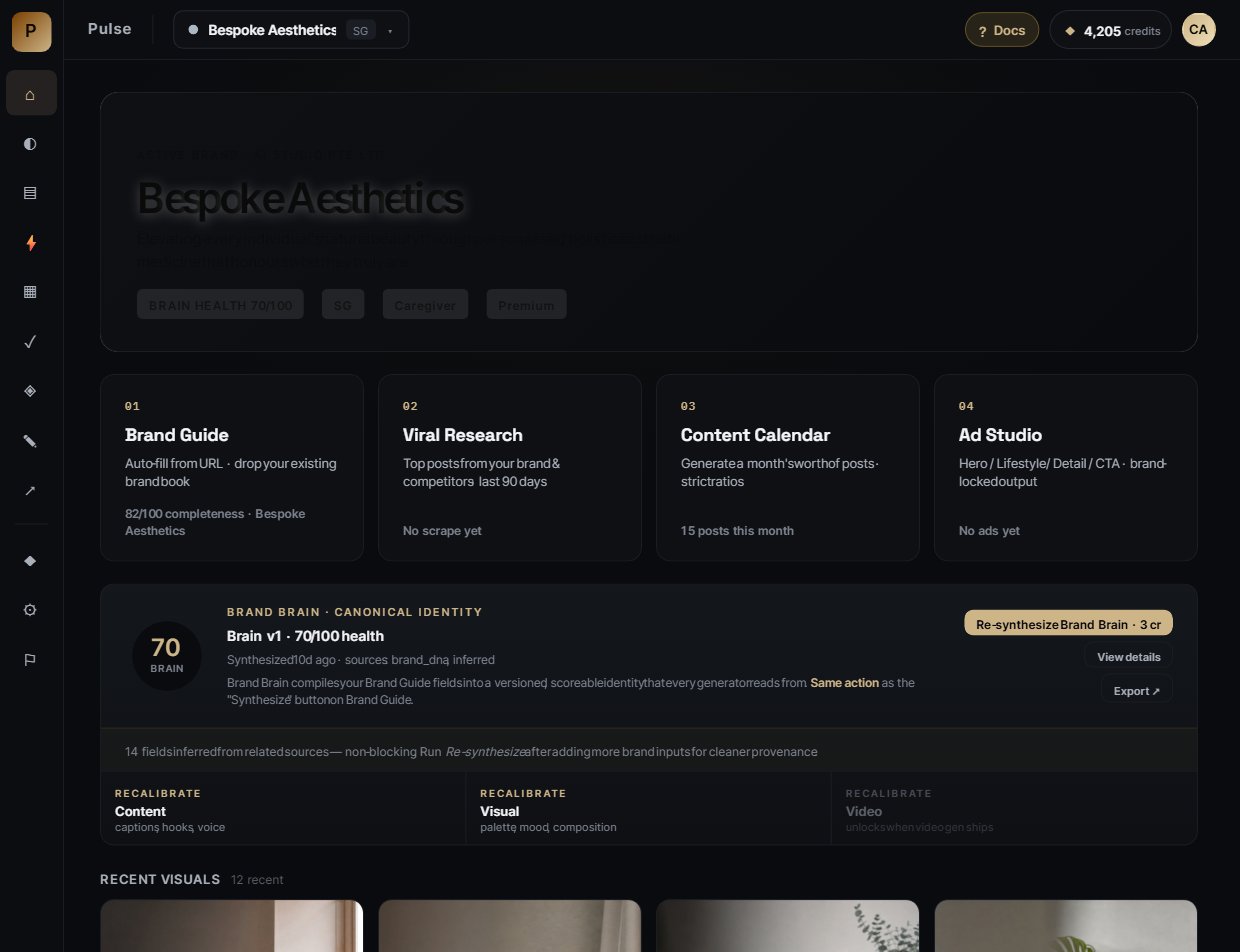
The Overview dashboard: active brand, brand brain health, quick-action cards into every generator. The black sidebar collapses to icons on smaller screens.
Why Brand Brain is everything.
Most AI content tools generate from a generic prompt. Pulse generates from your brand's specific identity — palette, voice, rituals, hero campaigns, cultural touchstones, don't-say list. That's the difference between "an AI image of a chocolate bar" and "a brand-true KitKat Christmas moment that lands in Singapore."
The simple math
Untrained brain → generic stock photos, off-palette colours, hallucinated logos, wrong market cues. Looks AI. Off-brand.
Trained brain → editorial-grade visuals that look like they came from your actual shoot. Palette locked, lighting locked, composition locked, market localized, wordmark composited.
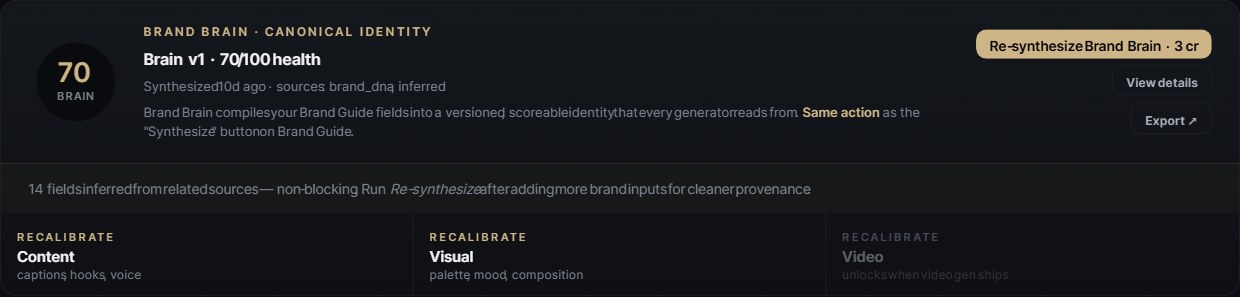
Brand Brain card on Overview — version, health score (0–100), recalibrate by dimension (Content · Visual · Video). Aim for 80+ before generating client work.
Identity
Essence, promise, archetype, hero products, market positioning.
Voice
Tone, voice samples, do-say / don't-say list, banned terms.
Visual
Palette (with auto loud-colour demotion), lighting, composition rules, mood.
Content DNA
Rituals, hero campaigns, cultural touchstones — the things only your brand does.
Benchmarks
Competitor patterns + your own top-performing posts.
Video rules
Motion guardrails — no in-frame text, palette ratios, mandatory wordmark overlay.
Brand Guide — the source of truth.
This is where you tell Pulse who your brand is. Paste a URL and Pulse auto-extracts colours, voice, hero products, and competitors. Or start from scratch and fill it yourself.
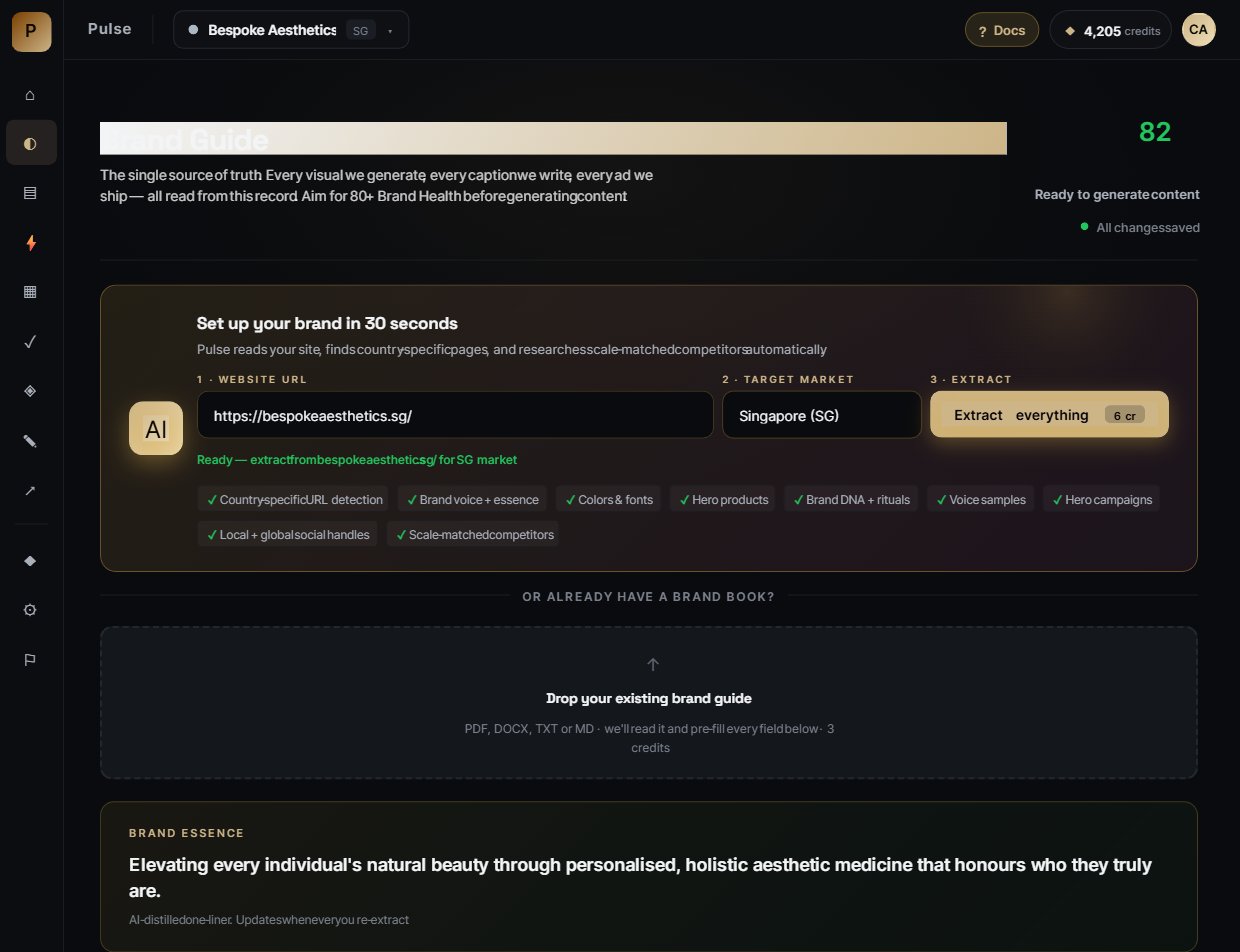
Top of Brand Guide: 30-second auto-fill from URL. Pulse reads the site, finds country pages, parses brand colours and fonts, and researches scale-matched competitors automatically.
Paste your URL
Any homepage works — brand.com, brand.com.sg, even a regional sub-page. Pulse follows redirects and retries intelligently so it can read sites that normally block automated readers.
New: handle fields accept ANY format — paste @brandname, brandname, or even the full https://www.instagram.com/brandname/ URL. Pulse normalises to a clean username automatically.
Pick your target market
Singapore, Malaysia, Indonesia, Thailand, Hong Kong, Japan, UK, US — 18 markets supported. Determines language, cultural touchstones, hawker-vs-hipster cues.
Click "Create + extract · 2 cr"
Pulse spends 2 credits to read the site, parse the colours from CSS, find your social handles, identify your scale-matched competitors, and write a draft brand guide.
The 30+ fields you can teach it
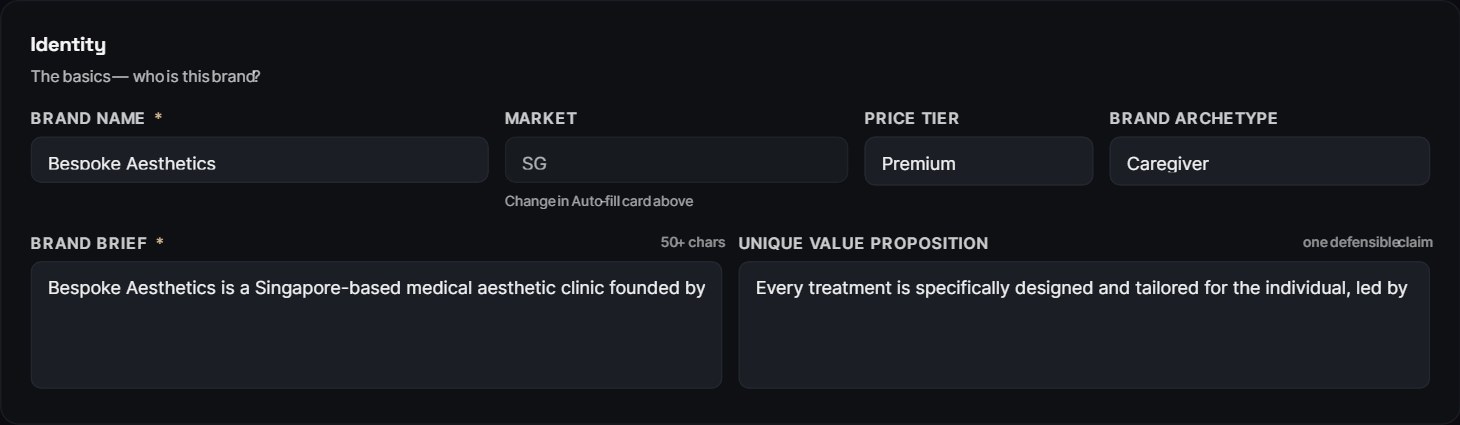
Middle section: brand essence, promise, archetype, voice samples, rituals, hero campaigns, cultural touchstones, don't-say list. Every empty field is a missed opportunity to lock in your brand.
Pro tip — train it like you'd onboard a new junior
Don't just paste the obvious. Tell it the things your team has internalised: "we never call them 'pieces', we call them 'fingers'." "We never show wine, only kopi." "Headlines always start with a verb." This is where the magic compounds.
Brand Brain — synthesized canon.
After Brand Guide is filled, click Synthesize · 2 cr to compile everything into a structured brain. Output is versioned and scored 0–100 on completeness.
One button, two labels
"Synthesize Brand Brain · 2 cr" on Brand Guide and "Re-synthesize Brand Brain · 2 cr" on the Brain card do the same thing. The label just changes depending on whether a brain already exists for this brand. Re-running picks up any new edits to Brand Guide fields and bumps the version number.
Recalibrate by dimension
Edit one slice without rebuilding the whole brain. Three independent dimensions:
Content recalibration
Tweak captions, hooks, voice — without touching visuals. Use when output sounds off but visuals are great.
Visual recalibration
Tweak palette, mood, composition — without touching copy. Use when output reads great but visuals drift.
Video recalibration
Motion guardrails — kicks in when video gen ships for your tier.
Visual Style Library — reference photos that anchor every render.
Drop in real product photography, mood references, location shots. Pulse uses these as image-to-image anchors so AI output never strays from your actual aesthetic.
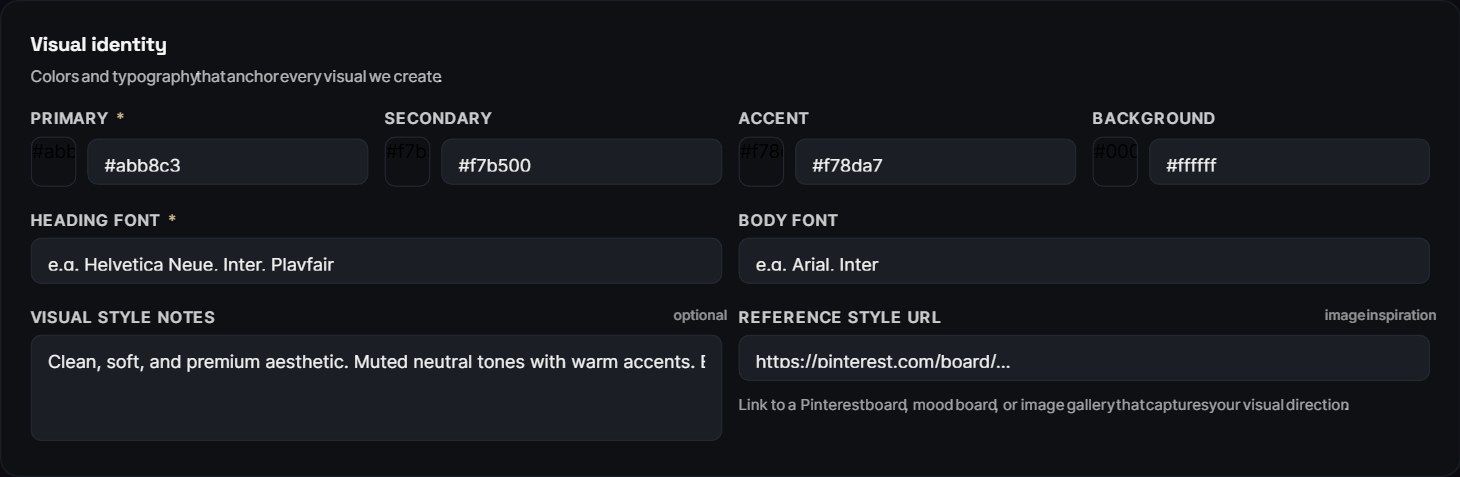
Visual Style Library — drop images, videos, or paste URLs from Instagram / TikTok / YouTube / Pinterest. Each gets tagged (Hero · Product · Lifestyle · Mood) and pinned references get priority during generation.
Why it transforms output
Without references, AI image models hallucinate your product. KitKat becomes "Kikes." Wrappers come out garbled. Logos morph mid-frame.
With a pinned hero reference, AI receives an image-to-image anchor instead of just a text prompt. Real wrapper, real colours, real proportions — preserved.
Categories
- Hero — your money shot. Use 1–2 max.
- Product — individual SKUs, variants, packaging.
- Lifestyle — in-context use, locations, talent.
- Mood — abstract references for lighting / palette inspiration.
How AI uses them — under the hood
Whenever you click Generate visual, Pulse picks the most-relevant reference (matching category + pinned-first), feeds it to the image model as the visual anchor, and only varies what your brief asks to vary. The reference photo IS the opening frame.
Character Library — consistent faces across every post.
Upload portraits of your locked-in models, founders, or recurring talent. Pulse rebuilds them faithfully in every generation so your campaigns feel like the same continuous story — not a stock-photo collage.
Character library lives just under the Visual Style panel in Brand Guide. Drop a clean portrait, name it (e.g. "Anya — founder", "Mei — Singapore market"), and that character can be invoked by name in any generation.
Upload a clean portrait
Front-on, good lighting, no sunglasses or hats. Higher res = better consistency. JPG / PNG / WebP, max 5 MB.
Mark "Default" if it should appear in every render
One default character per brand. Default = used automatically when a generation needs a person. Override per-post if needed.
Optional: per-market characters
Different talent for SG vs MY? Add one of each. Tag with the market and Pulse picks the right one automatically.
Important — face-consistency limits
Modern image models are excellent at preserving faces from a reference, but identical reproduction across 30 renders is impossible. Expect ~85–90% consistency. For perfect identity (client-locked talent), do a single hero shoot and use those photos as references — don't ask AI to invent multiple angles of the same face.
Viral Research — what's working, why, right now.
Pulse scrapes your own + competitor Instagram and TikTok over the last 90 days, ranks every post by engagement velocity, and writes a "why it worked" line on the top 15. So your team isn't guessing what to make next — they're stealing from what's already proven.
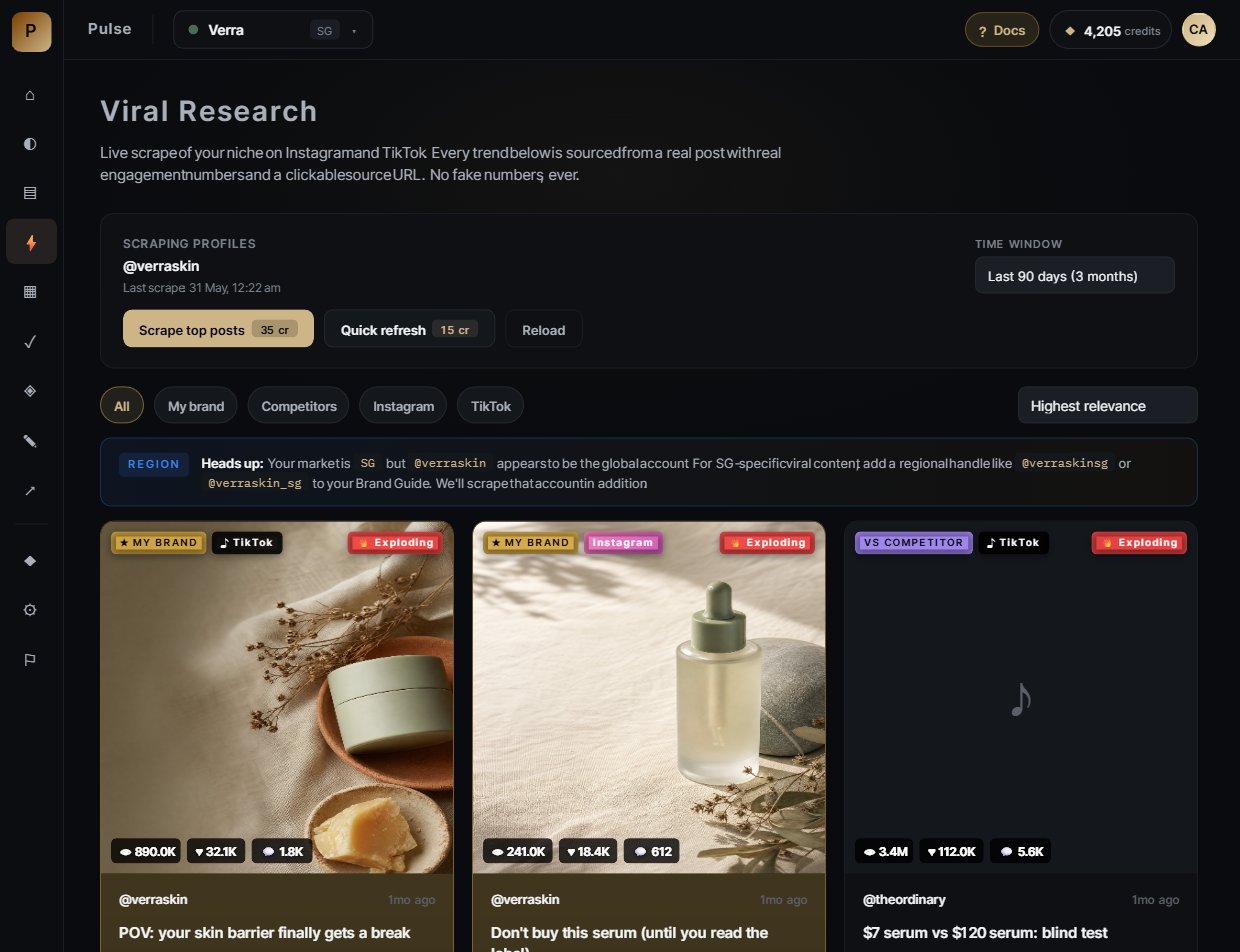
Viral Research grid — every card shows the actual thumbnail (permanently rehosted on Pulse's storage, never expires), engagement metrics, velocity tag (Stable / Rising / Exploding), and hook pattern (Mystery Teaser Drop, Stunt Reveal, etc).
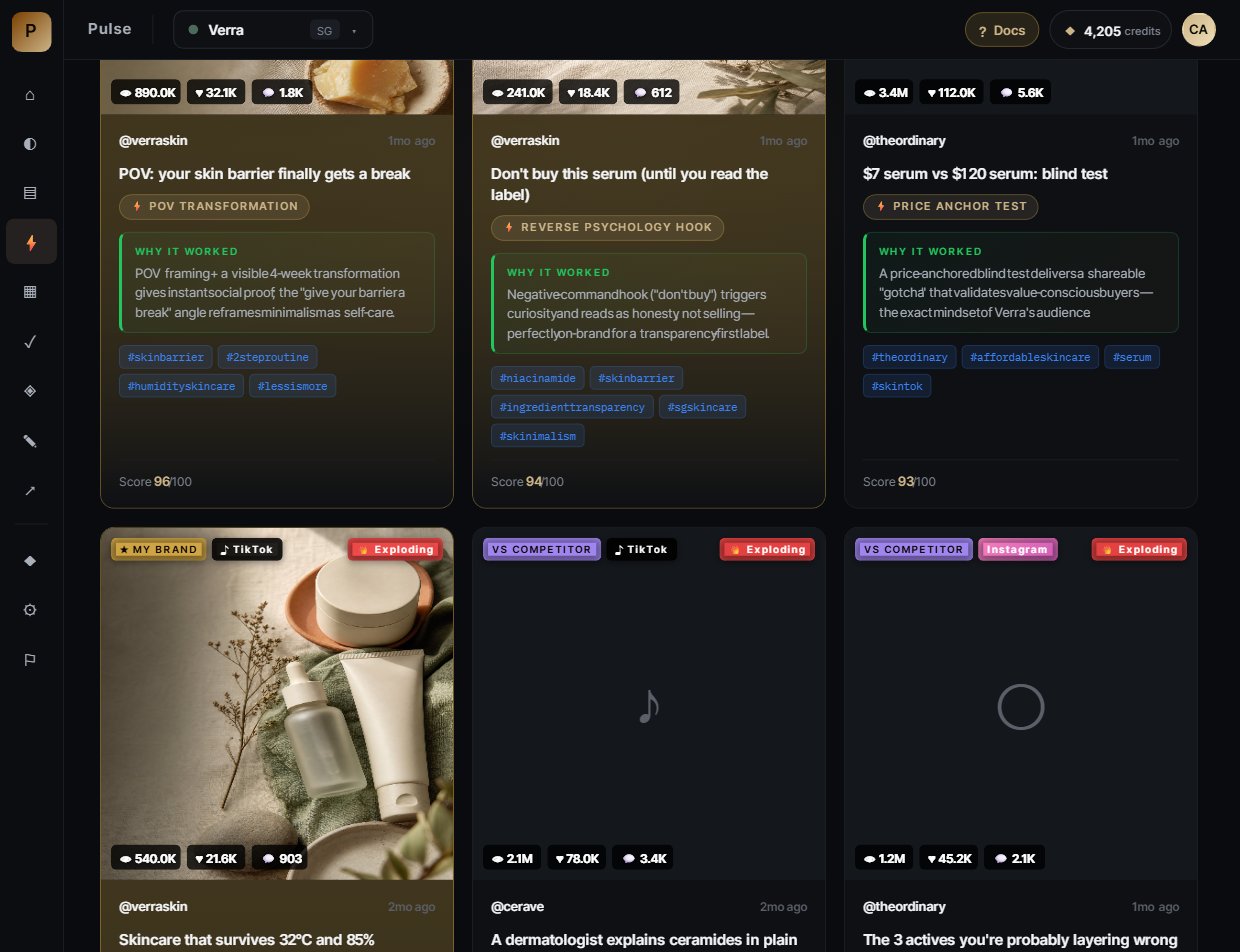
Each card answers four questions
- What — caption + visual
- How well — likes / views / shares / comments + velocity
- Why it worked — an analysis of the psychological trigger
- Hook pattern — 2-4 word label naming the technique
Three modes
- My Brand — your own top posts (validates what's resonating).
- Competitor — top competitor posts (steal the technique).
- All — combined ranking.
Thumbnails that never break
Instagram and TikTok image links expire within hours. Pulse saves a permanent copy of every thumbnail to your own storage the moment it's scraped — so your Viral Research grid always shows real images, even weeks later.
Content Calendar — a month's worth of posts in 90 seconds.
Tell Pulse the month, the static-vs-reel ratio, and your campaign brief. It generates the full schedule (15-30 posts) — each one written, captioned, hashtagged, and structured with a visual brief ready for image generation.
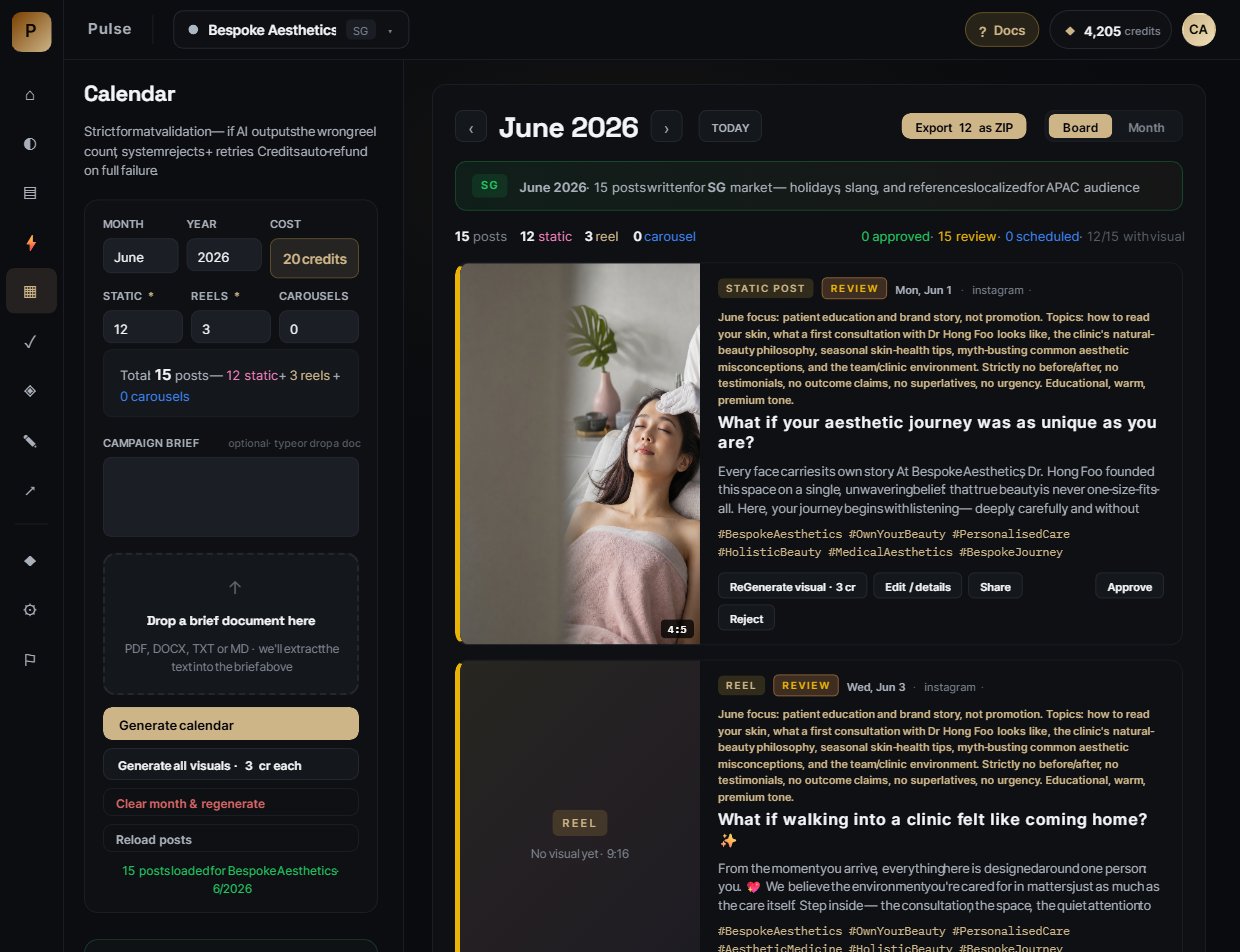
Calendar generator — pick month, year, format mix (12 static + 3 reels + 0 carousels by default). Drop a campaign brief (TXT / DOCX / PDF) and Pulse adapts every post to it.
The post modal — edit anything, regen anything
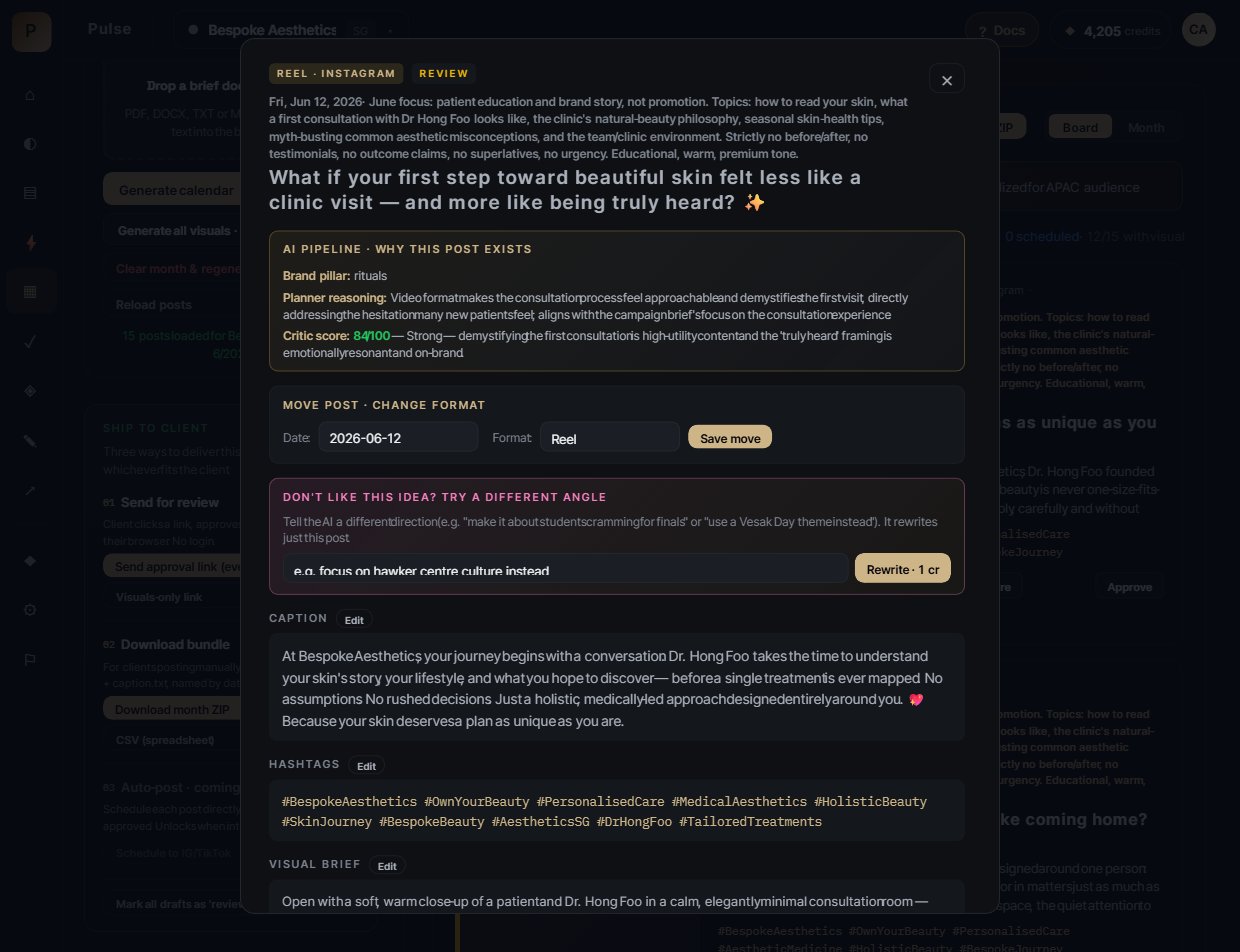
Click any post → full edit modal. Move dates, change formats, edit captions/hashtags/visual briefs inline, drop a reference image for image-to-image guidance, or rewrite the whole idea with a different angle for 1 credit.
"Don't like this idea?"
Pink box at the top of the modal. Type a different direction — "make it about Vesak Day" or "use hawker centre culture" — and Pulse rewrites just this post for 1 credit.
Edit Caption / Hashtags / Visual brief
Inline Edit buttons. Free. Save → autosaves to the post.
Reference image dropzone
Drag in a product photo or mood reference. Pulse uses it as image-to-image guidance during the next generation.
Multi-platform aspect picker
IG Portrait 4:5 (default), IG Feed 1:1, Reel 9:16, Story 9:16, TikTok 9:16, FB 1:1. Pick multiple — Pulse generates one image per unique aspect.
Generate now · 1 cr
Generate the image from the current brief. Cheap iteration.
Save edits & regenerate · 1 cr/aspect
Saves your text edits AND regenerates the image using your reference. Use after you've tweaked the brief.
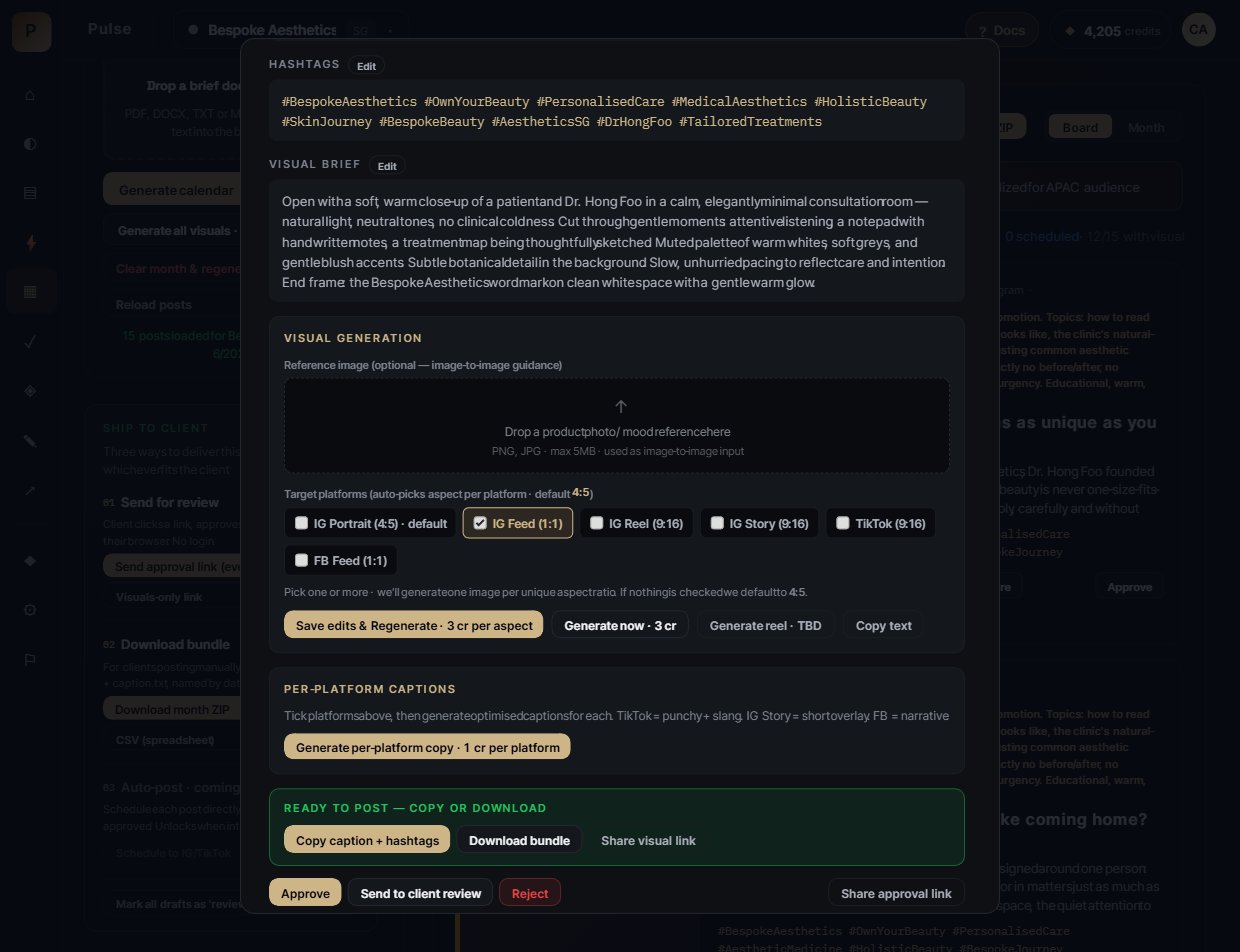
Lower half of the post modal — reference dropzone, platform aspect picker, and the two generate buttons. Approve / Reject / Move buttons live in the calendar grid for fast workflow review.
Ad Studio — 4 brand-true concepts, every campaign.
Type a campaign brief. Pulse returns four ad concepts — Hero / Lifestyle / Detail / CTA — each one tagged to a specific brand pillar with explicit "why this works" reasoning rooted in your brand brain. Then animate any concept into a 4-second i2v with locked product fidelity.
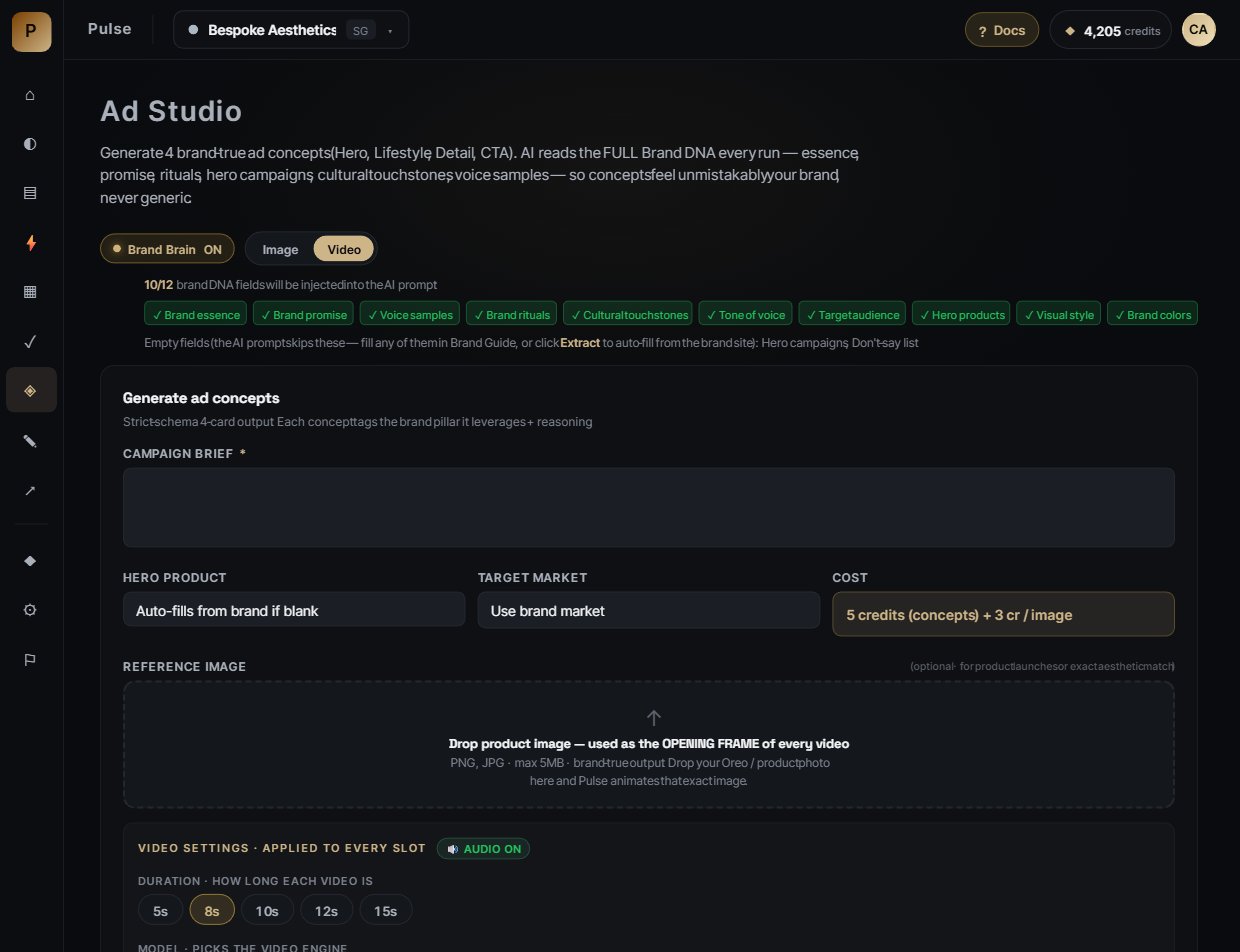
Ad Studio entry — Brand Brain pill (on / off), Image / Video mode toggle, 12/12 brand DNA fields injected per generation, campaign brief, hero product, target market, optional reference image dropzone for exact aesthetic match.
Your viral data feeds your ads
Before generating concepts, Pulse pulls this brand's top 5 trends from Viral Research and feeds the AI their hook patterns + "why it worked" reasoning. So when KitKat's top post is a "Mystery Teaser Drop" with 637k likes, the concepts lean into mystery-teaser mechanics — not generic chocolate-brand visuals. Your viral data feeds your ad output automatically.
The image-to-video pipeline (the bit that actually works)
Pulse writes 4 concepts using brand brain
Brand essence + promise + rituals + hero campaigns + cultural touchstones — all injected. Output includes headline, caption, visual brief, voiceover hint, and "why this works".
Generate the still (1 cr)
Pulse's image engine renders an editorial-grade still using the brand's palette, lighting, and composition rules. Real product preserved via your visual style library.
Approve the still inline
You see it. Regenerate cheap if needed. The still IS what the client will see in the static post, AND the opening frame of the video.
Animate that exact still (cost shown before you generate)
Pulse's video engine takes the still as the literal first frame and adds subtle motion (camera push, hand gesture, steam drift) — never inventing new objects or scene cuts. Audio defaults ON.
Real HTML/CSS overlays compose on top
Brand wordmark + headline overlay get rendered as real text on top of the video in the dashboard — never asked of the AI (which would garble "KitKat" into "Kikes"). What you see is what you ship.
Why image-to-video — not text-to-video
Text-to-video models hallucinate. They invent fake KitKats, garble wrappers, change lighting mid-shot. With i2v, the still you approved IS the opening frame — the model only adds motion, never invents content. Result: every video looks like it came from your actual shoot.
AI Regenerate — restyle any image with a change.
Two AI regeneration tools for taking a generated image and producing a new variant with a specific change: regenerate without background (clean cut-out style) and regenerate without an object (describe what to remove). Available inline on every generated visual (Ad Studio, Calendar, Brand Book) AND in a dedicated sidebar view.
Two ways to open it
1 · Inline ✎ Edit pill. Every generated image has a small "✎ Edit" pill in the top-right corner. Hover any image in Ad Studio slot cards, Calendar post previews, or the Brand Book hero → click the pill → AI Regenerate opens with that image pre-loaded and tied to the right database record. On save, your post / ad slot / logo automatically updates to the new version.
2 · Dedicated sidebar view. "AI Regenerate" item in the left sidebar (between Ad Studio and Auto Post). Click it to open a gallery of every generated image for the current brand. Click any thumbnail to regenerate. There's also a URL paste field at the bottom — drop any image URL to regenerate it standalone.
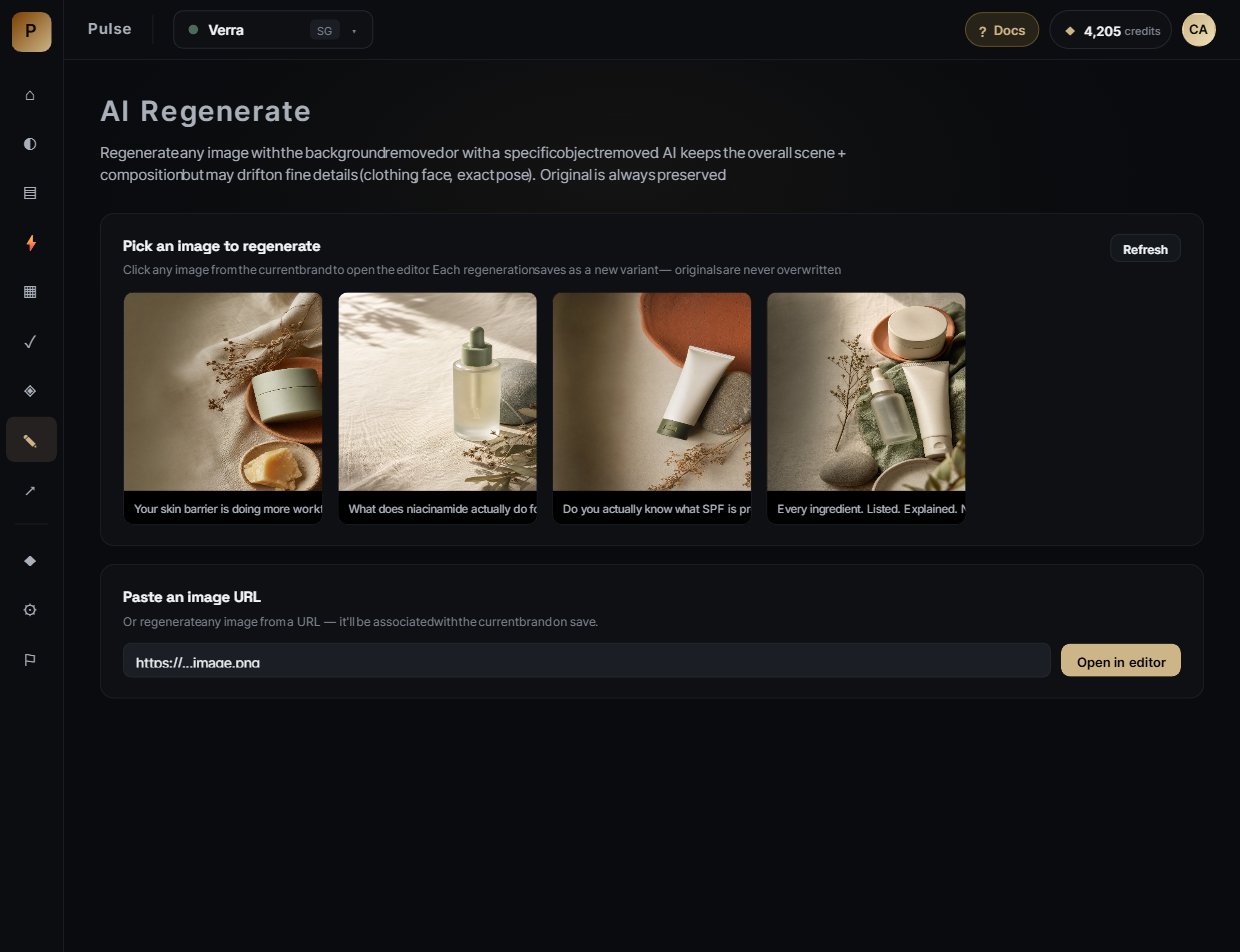
Dedicated view — thumbnail gallery of every generated image for the current brand, plus a URL paste field at the bottom for one-off regenerations.
Tool 1 · Regenerate without background (1 click)
For producing a cut-out-style variant of any generated image. The AI keeps the subject + scene; the background becomes transparent.
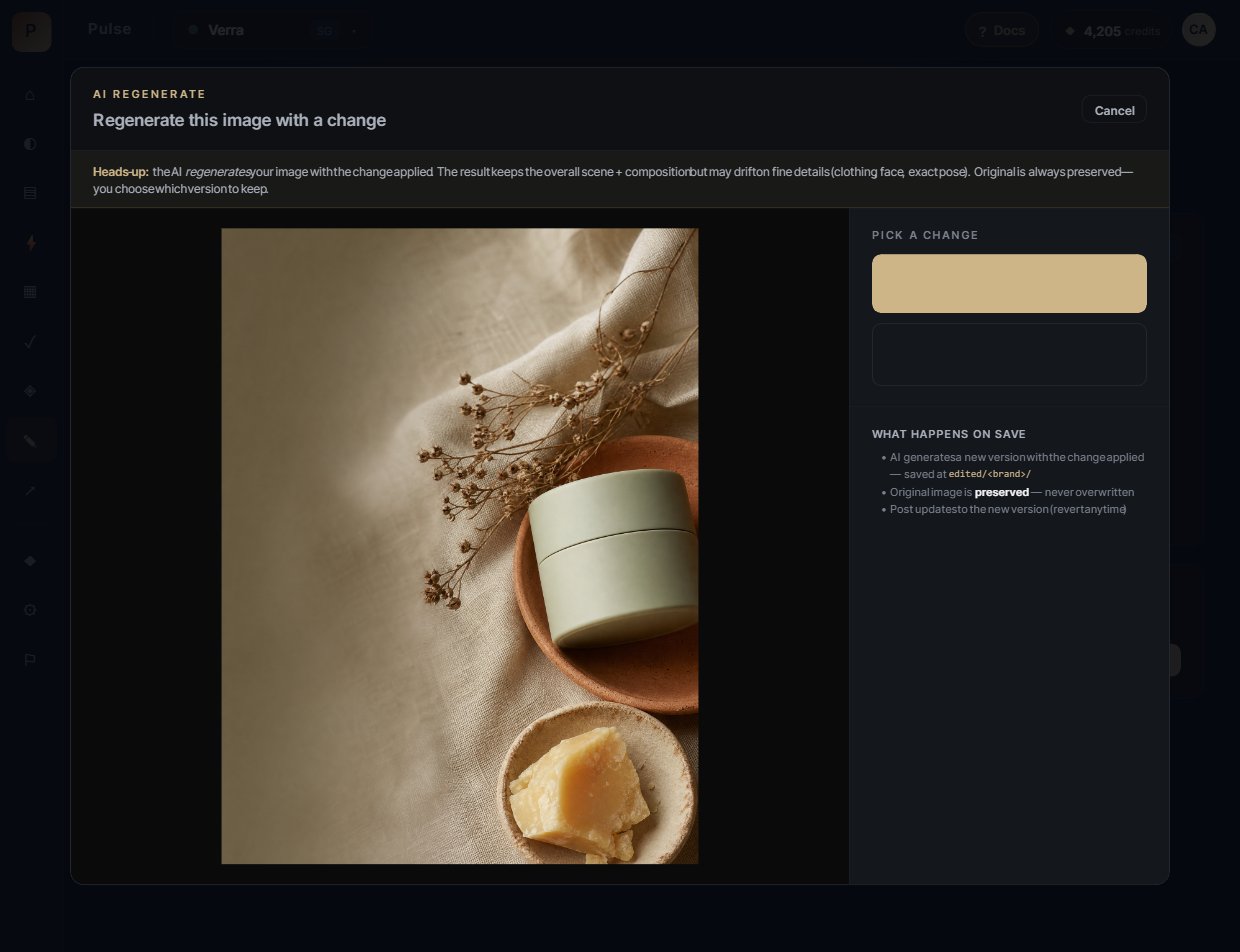
Modal — image on the left, the two regeneration options on the right. The yellow heads-up banner at the top explicitly tells users this is regeneration, not pixel editing.
- Click the ✎ Edit pill on any image (or open it from the dedicated view).
- Modal opens with the image + the honest "AI regenerates your image" heads-up banner.
- Click the gold ◐ Regenerate without background button on the right.
- Wait ~30 seconds while Pulse regenerates. A loading overlay appears with a spinner.
- Done. New version with transparent background swaps in. Toast confirms "AI regenerated · 1 credit spent · Note: fine details may differ from original".
Your original image is kept safe, and the regenerated variant is saved alongside it. You can always switch back to the original.
Tool 2 · Regenerate without an object (describe what to remove)
For producing a variant where a specific thing is gone. Instead of brushing pixels (which would imply pixel-perfect editing — something AI regenerators don't do), you describe what to remove in plain language. The AI then regenerates the whole scene without it.
- Click ✎ Edit on any image.
- Click the ✕ Regenerate without an object button. A text field appears.
- Describe what to remove. Be specific — name the object AND where it is in the frame:
- ✓ "the red car in the background"
- ✓ "the empty coffee cup on the desk"
- ✓ "the small watermark in the bottom right"
- ✗ "that thing" (too vague — AI won't find it)
- ✗ "things I don't like" (too subjective)
- Click Regenerate · 2 credits. Wait ~30 seconds.
- New variant swaps in. The named object is gone; the surrounding scene is regenerated to fill the space.
Tip: name the object and where it sits in the frame ("the cup on the left edge") — the more specific you are, the cleaner the result.
Access & refunds
AI Regenerate is available on every plan, including the free trial. Failed regenerations are automatically refunded — you only pay for a result you actually receive.
What's not included (yet)
- Crop / rotate / canvas resize — on the roadmap
- Colour adjustment (exposure, contrast, saturation) — on the roadmap
- Text overlay — use the Ad Studio overlay editor for now
- AI upscaling — on the roadmap
- Undo / redo within a session — save and re-edit instead
Review & Share — client approval without a login.
Generate a shareable approval link backed by a token-based RPC. Clients see the entire month's calendar, can approve / reject each post, leave comments. No account needed.
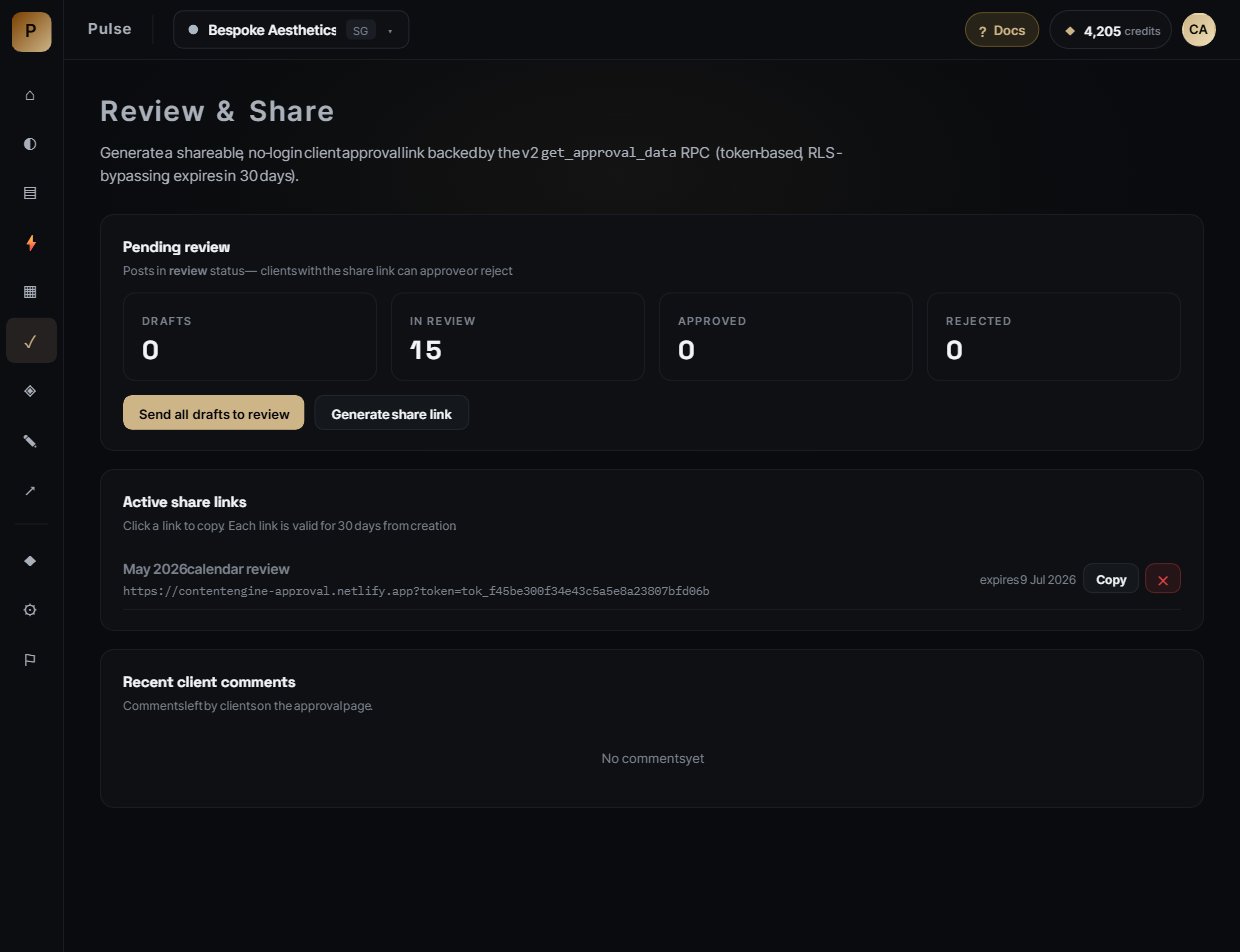
Each token expires in 30 days and is scoped to that brand only. Comments come back into the Pulse calendar grid in real time.
Auto Post — schedule straight to Instagram, TikTok & Facebook.
Auto Post will let you take an approved post and schedule it to publish on its own — Pulse handles the upload, caption, and hashtags at the scheduled time, so your calendar ships itself.
Status — in final testing
The scheduling interface is already in the calendar — you can set a date and time on any post today. Direct publishing isn't switched on yet. We're finishing testing on the connection to Instagram, TikTok, and Facebook before we let it post to live accounts, so for now scheduled posts won't publish automatically.
Until it ships, the reliable workflow is: approve in Pulse → download the image and copy the caption from the post → post natively, or hand off via Review & Share.
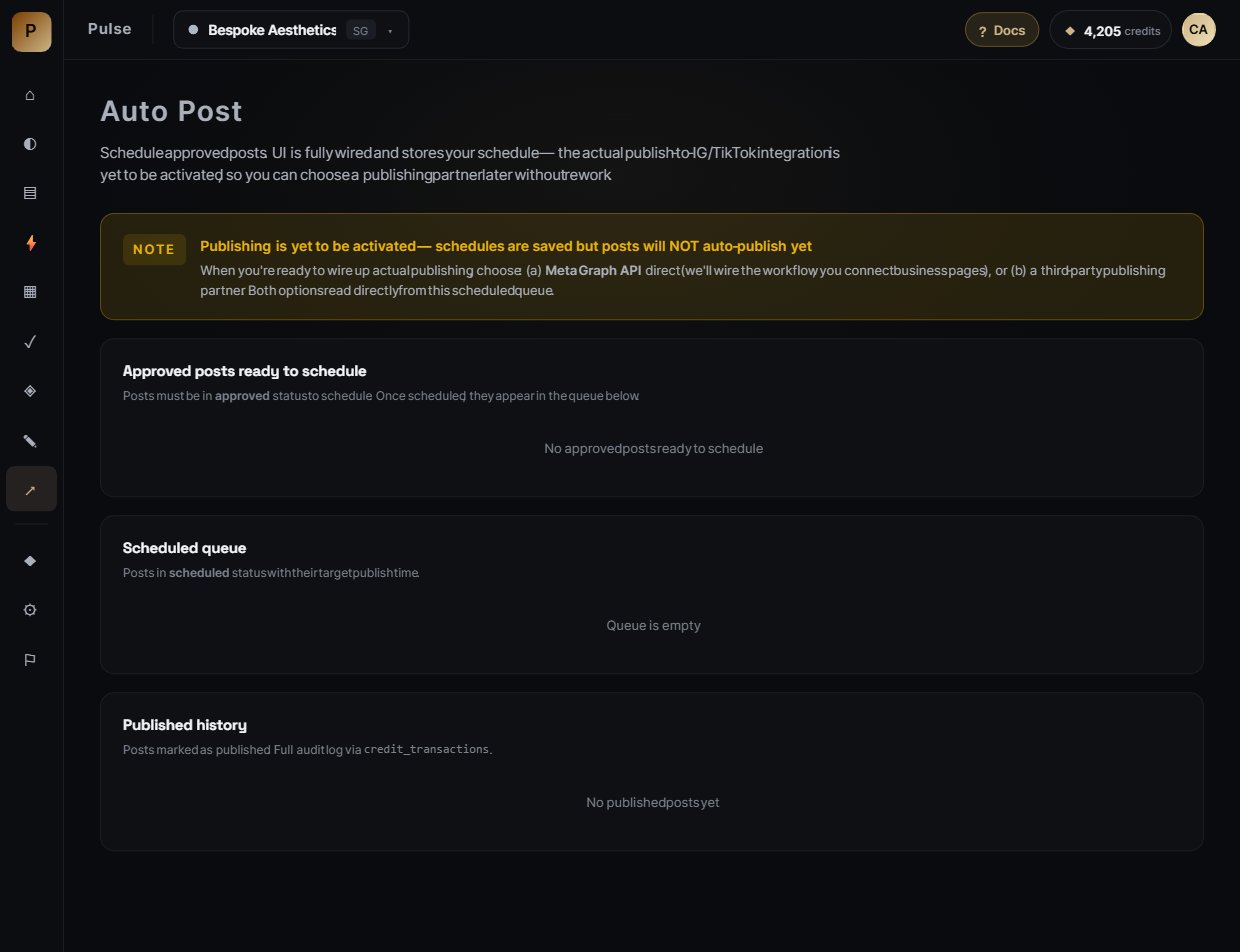
The scheduling UI as it looks today. When Auto Post goes live, connecting an account will be a one-time step per workspace, and failed publishes will retry and surface a clear error in the calendar.
Credits & Billing — pick a plan, spend credits, ship.
Everything in Pulse runs on credits. Each plan gives you a monthly bucket of credits plus a brand allowance. Start free, upgrade when you're ready, and top up anytime you need more.
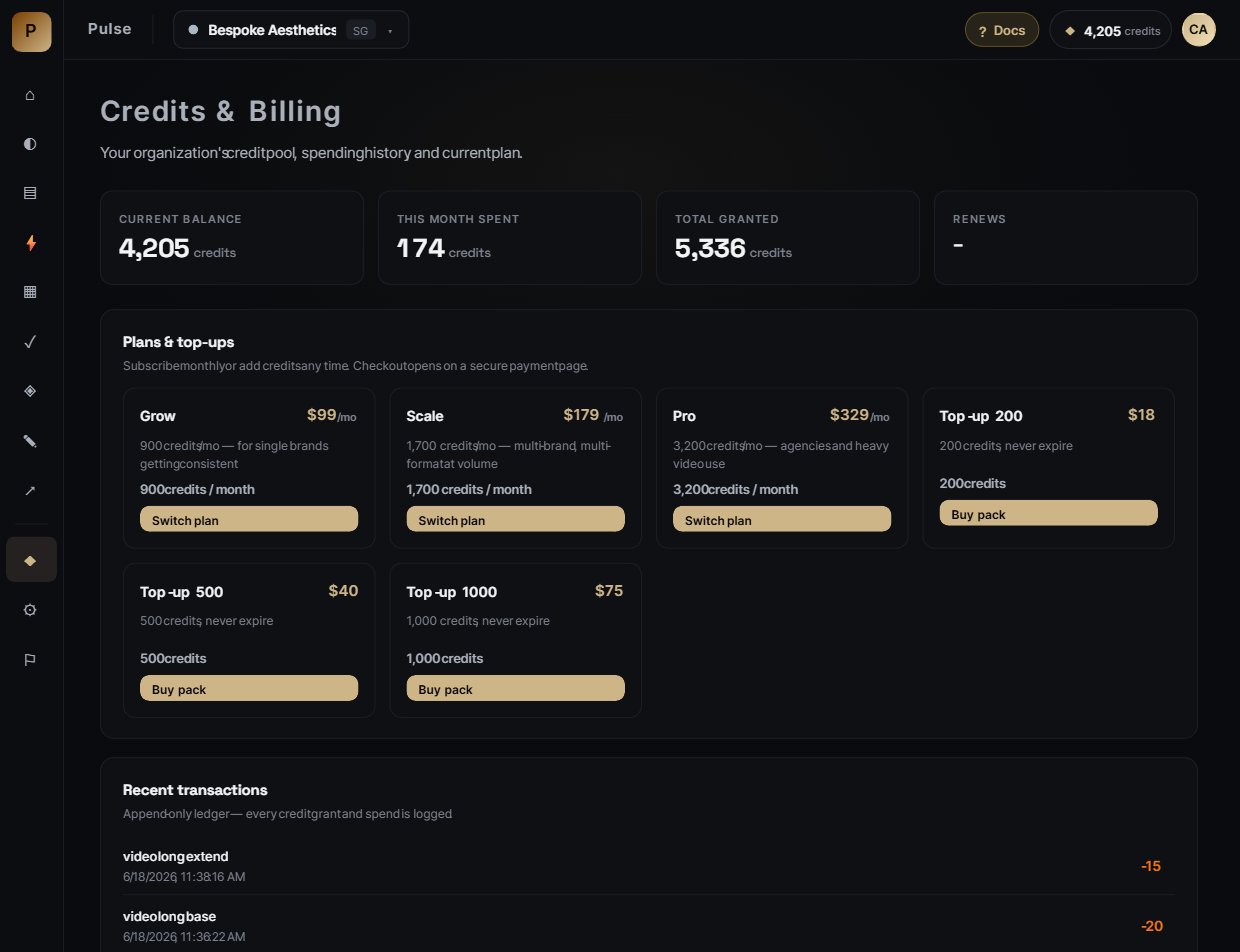
Plans
| Plan | Brands | Credits / month | Price / month |
|---|---|---|---|
| Free trial · 14 days | 1 | 50 credits (one-time) | $0 · no card |
| Grow | 1 | 900 credits | $99 |
| Scale | 3 | 1,700 credits | $179 |
| Pro | 10 | 3,200 credits | $329 |
Need more brands or volume than Pro? Talk to us about a custom allowance.
Top-up packs — never expire
Running low before your cycle resets? Add credits anytime. Top-up credits roll over month to month and never expire.
| Pack | Credits | Price |
|---|---|---|
| Top-up 200 | 200 credits | $18 |
| Top-up 500 | 500 credits | $40 |
| Top-up 1,000 | 1,000 credits | $75 |
How credits expire
Monthly plan credits reset each billing cycle — they don't roll over, so use them within the month. Top-up credits never expire — they sit in your balance until you spend them. When you generate, Pulse spends your monthly credits first and saves your top-ups for last.
What things cost
Pulse always shows the exact credit cost on the button before you confirm — so you're never surprised. The table below is a rough guide; video costs vary by clip length and quality tier.
| Action | What you get | Typical cost |
|---|---|---|
| Set up a brand from a URL | Brand fields auto-filled from your site | 2 cr |
| Synthesize / re-synthesize Brand Brain | Compiled brand canon · health score | 2 cr |
| Recalibrate one dimension | Refine content or visual slice | 1 cr |
| Viral Research | Ranked trends + "why it worked" insights | 3–5 cr |
| Generate a month's calendar | A full month of posts, captions, hashtags, briefs | ~20 cr |
| Generate a post or ad image | One brand-locked image | 1 cr / aspect |
| Rewrite a post with a new angle | Caption + brief regenerated | 1 cr |
| Generate 4 ad concepts | Hero / Lifestyle / Detail / CTA | 2 cr |
| AI Regenerate an image | Background removal or object removal | 2 cr |
| Animate a still into video | Short brand-locked clip · varies by length & quality | shown per option |
Failed generations are automatically refunded — you only pay for output you actually receive.
The Training Playbook — get from 60/100 to 95/100.
Pulse rewards specificity. The brands that look best on Pulse aren't necessarily the biggest brands — they're the ones whose teams took 30 minutes to write down what they already knew.
The 30-minute uplift checklist
If you only do these eight things, your brand brain jumps from generic to unmistakable.
Write your brand essence as one sentence
"Have a Break, Have a KitKat." Not "premium chocolate snack with global recognition." Use plain language. Brain reads this verbatim into every prompt.
List 3 rituals only your brand does
The snap. The pause. The break-from-life moment. These become the structural backbone of every generated concept.
Paste 5 voice samples (real captions you've shipped)
Best line you ever wrote, second-best, then 3 typical posts. Tone of voice copies these patterns directly.
List your hero campaigns by name
"KitKat Bench partnerships." "Have a Break." "Senses launch." Pulse uses these as creative direction anchors.
Define your don't-say list
Banned words, off-brand phrases. "Never say cheap. Never say AI. Never use 'unleash'." Brand brain enforces this as a hard guardrail.
Upload 3 hero photos + 1 portrait of your locked talent
The references are what stop the model from inventing fake products. Pin the best one. (Visual Style Library + Character Library)
Run "Find competitors"
Pulse picks 2–4 scale-matched competitors automatically. Confirm or replace them. Their content fuels Viral Research and benchmark anchoring.
Synthesize · 2 cr · aim for 80+ health
If health is under 80, the brain tells you which fields are still empty. Fill them, click Recalibrate (just the affected dimension), and you're done.
What "well-trained" actually looks like
The real unlock
Pulse isn't faster — it's consistent. The reason a single freelancer can hold a 30-brand book of business is because Pulse holds every brand's identity in its head between sessions. You're not re-explaining the brand to AI every time. You explained it once. It remembers.
Built by AI Studio · pulsehq.biz · A Month of Content in Minutes
Documentation last refreshed from a live tenant — every screenshot is a real workspace, not a mockup.